Delayed PGN broadcast setup for live chess events.
Download the Move Delay Setup utility to configure a delayed single-PGN broadcast source. The utility helps tournament organizers set up DGT LiveChess export folders, PGN source files, URL sources, round selection, polling, move delay, and engine updates from one simple Windows interface.
Request Download Access
1 Download and install the Move Delay Setup utility on a Windows tournament/DGT computer.
2 Use Update Engine for first-time setup (and later update, if needed).
3 Enter Org or Retrieve Org/Event info and (re)activate specific PGN with registered email.
4 Configure the DGT LiveChess folder, other PGN sources (optional), current round, and delay settings.
5 Choose a unique output PGN filename to generate your single PGN source URL. Activate it to get final URL
6 Share the generated PGN URL with your broadcast platform(s) such as lichess/chess.com.
7 Click Start PGN Process to sync the delayed PGN URL to the server.
8 Stop running process after round is over. At start of next subsequent round, reselect the current round and start PGN process again.
DGT LiveChess note: In DGT LiveChess, use Output > Export to filesystem and enable 'Combined PGNs per round'. Select the top DGT export folder, not a /round-n/ subfolder or individual .pgn file.
Windows security notice
Some Windows systems may display a SmartScreen or download warning. Follow the examples below to continue the installation.
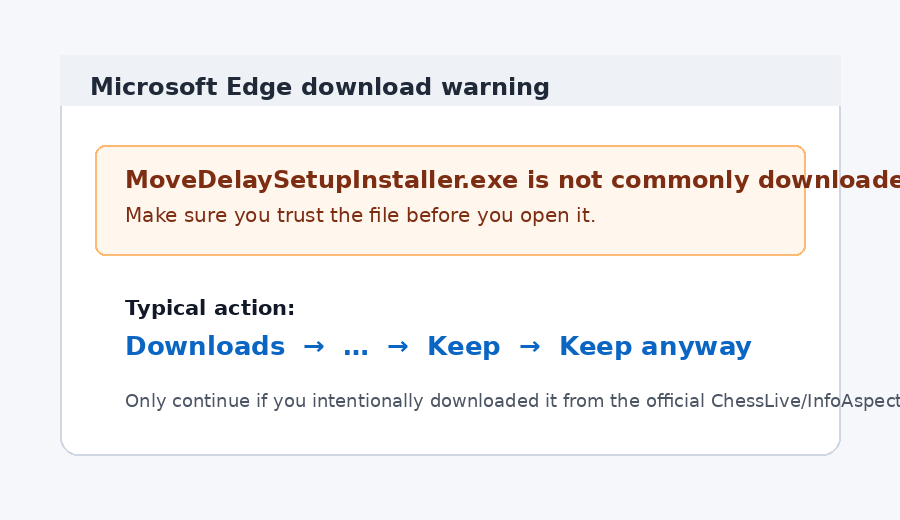
In Microsoft Edge, open the download warning/details menu and choose Keep.
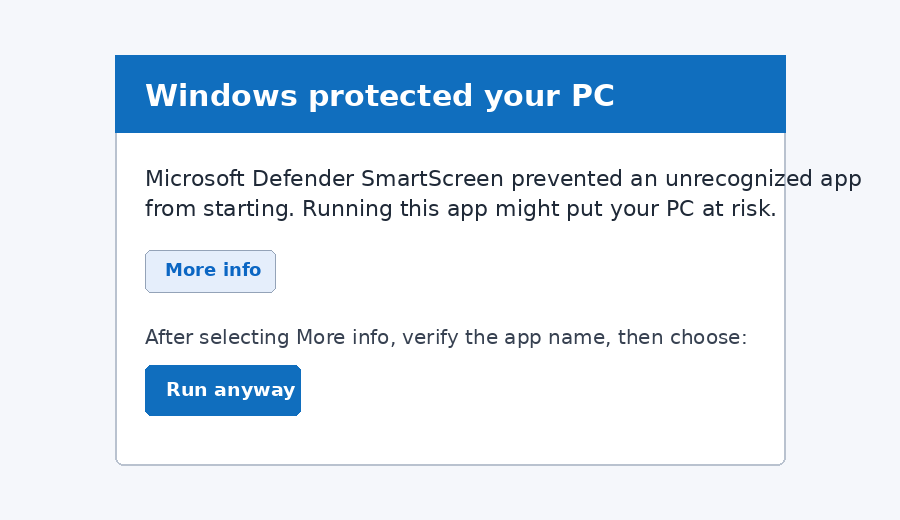
If Windows SmartScreen appears, choose More info, then choose Run anyway.
Example: browser download warning where the user may need to review details and keep the file.
Example: Windows SmartScreen screen where More info may reveal the Run anyway option.
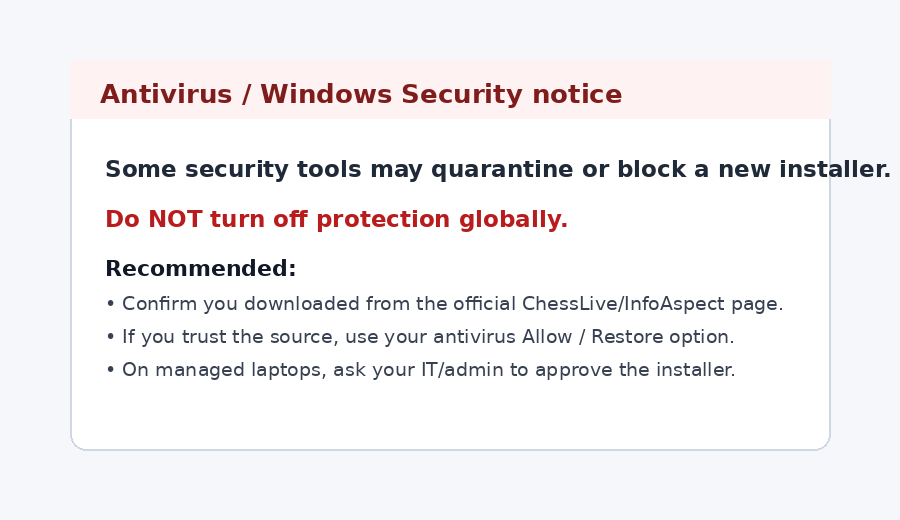
Example: antivirus/security notice; verify the official source before proceeding.